> ## Documentation Index
> Fetch the complete documentation index at: https://docs.messora.dev/llms.txt
> Use this file to discover all available pages before exploring further.
# Beta tester onboarding
> From account creation to your first extraction in the Messora Playground.
# Beta tester onboarding
Follow this guide to create an account, confirm your email, generate an API key, and run your first extraction in the Playground.
The complete flow takes a few minutes and does not require code or direct API configuration.
During the beta, use public URLs only and respect each target's terms of use, robots.txt, access limits, and policies.
## Objective
By the end of this guide, you should be able to:
* access a confirmed Messora account;
* create and securely store an API key;
* choose a public URL to test;
* run an extraction in the Playground;
* validate the result, diagnostics, and credit usage.
## Prerequisites
* An email address you can access immediately;
* a password between 12 and 128 characters;
* a public URL to test, such as `https://messora.dev`;
* an up-to-date browser.
Do not share your password, API key, or verification codes with support or other beta testers.
## Quick flow
1. Create your account at `/auth/signup`.
2. Confirm your email with the 6-digit code.
3. Open the dashboard at `/app`.
4. Create an API key under **API Keys**.
5. Open **Playground** and select **Extract**.
6. Enter a public URL and wait for the estimate.
7. Click **Extract Data** and validate the result.
***
## 1. Create your account
### How to access
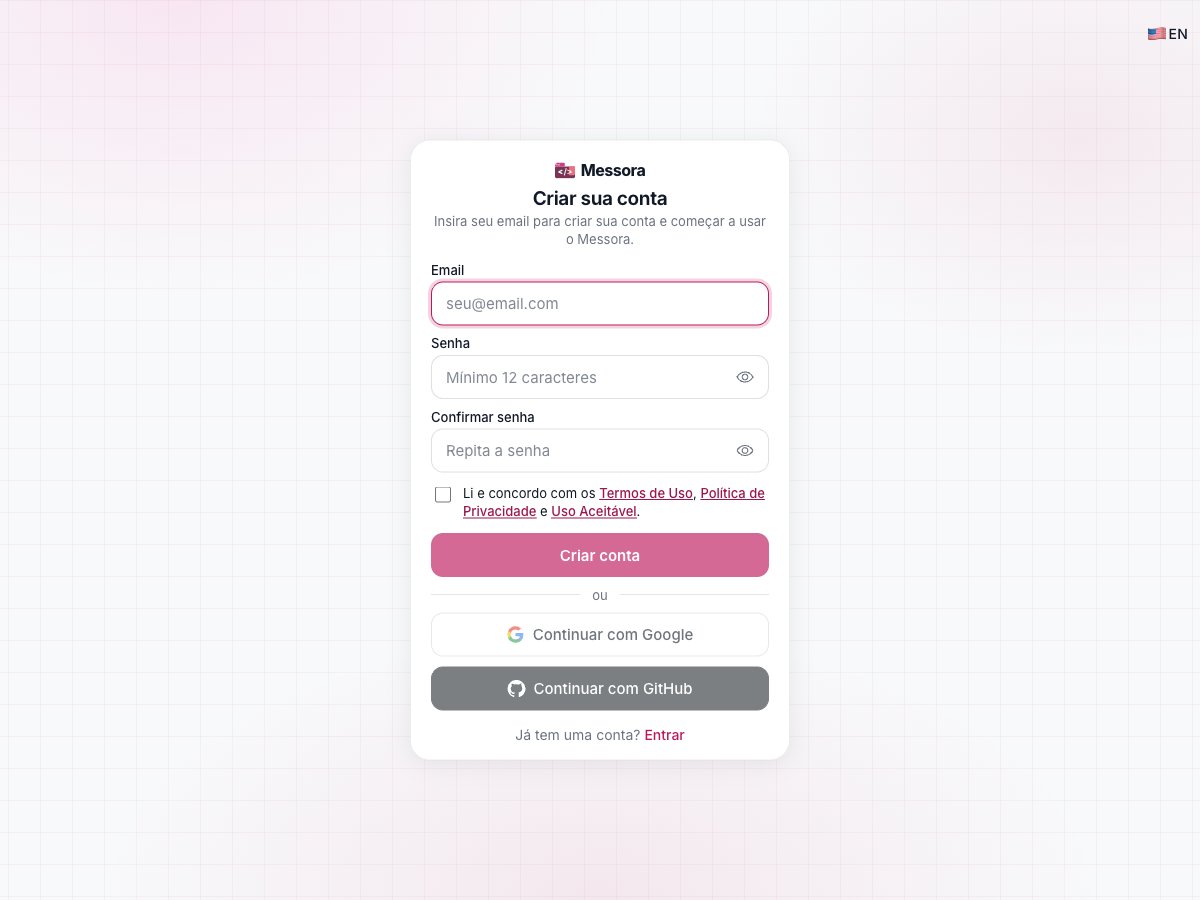
Open [www.messora.dev/auth/signup](https://www.messora.dev/auth/signup).
 ### Fields
| Field | Description | Required | Example |
| ---------------- | -------------------------------------------------------------------------- | -------- | ----------------- |
| Email | Address that receives the verification code. | Yes | `you@company.com` |
| Password | Account password. Must contain 12–128 characters. | Yes | A unique password |
| Confirm password | Repeated password used for validation. | Yes | Same as Password |
| Legal documents | Acceptance of the Terms of Use, Privacy Policy, and Acceptable Use Policy. | Yes | Checkbox selected |
### Steps
1. Enter your email address.
2. Create a password with at least 12 characters.
3. Repeat the password in **Confirm password**.
4. Read and accept the **Terms of Use**, **Privacy Policy**, and **Acceptable Use Policy**.
5. Click **Create account**.
6. Wait for the redirect to email confirmation.
The **Create account** button remains disabled until the required fields and legal acceptance are complete.
### Common states and errors
* **Email already registered:** use sign in or password recovery instead of creating another account.
* **Password too short:** enter at least 12 characters.
* **Password too long:** the limit is 128 characters.
* **Passwords do not match:** enter exactly the same password in both fields.
* **Compromised password:** choose another password if Messora reports that it appeared in public data breaches.
* **Invalid email:** check the address format.
* **Network or server error:** check your connection and try again later.
### Social sign-in
You can also continue with Google or GitHub after accepting the legal documents. The provider validates the email, but the API key is still created manually under **API Keys**.
***
## 2. Confirm your email
After signup, Messora creates the session and opens `/auth/verify-email`.
### Fields
| Field | Description | Required | Example |
| ---------------- | -------------------------------------------------------------------------- | -------- | ----------------- |
| Email | Address that receives the verification code. | Yes | `you@company.com` |
| Password | Account password. Must contain 12–128 characters. | Yes | A unique password |
| Confirm password | Repeated password used for validation. | Yes | Same as Password |
| Legal documents | Acceptance of the Terms of Use, Privacy Policy, and Acceptable Use Policy. | Yes | Checkbox selected |
### Steps
1. Enter your email address.
2. Create a password with at least 12 characters.
3. Repeat the password in **Confirm password**.
4. Read and accept the **Terms of Use**, **Privacy Policy**, and **Acceptable Use Policy**.
5. Click **Create account**.
6. Wait for the redirect to email confirmation.
The **Create account** button remains disabled until the required fields and legal acceptance are complete.
### Common states and errors
* **Email already registered:** use sign in or password recovery instead of creating another account.
* **Password too short:** enter at least 12 characters.
* **Password too long:** the limit is 128 characters.
* **Passwords do not match:** enter exactly the same password in both fields.
* **Compromised password:** choose another password if Messora reports that it appeared in public data breaches.
* **Invalid email:** check the address format.
* **Network or server error:** check your connection and try again later.
### Social sign-in
You can also continue with Google or GitHub after accepting the legal documents. The provider validates the email, but the API key is still created manually under **API Keys**.
***
## 2. Confirm your email
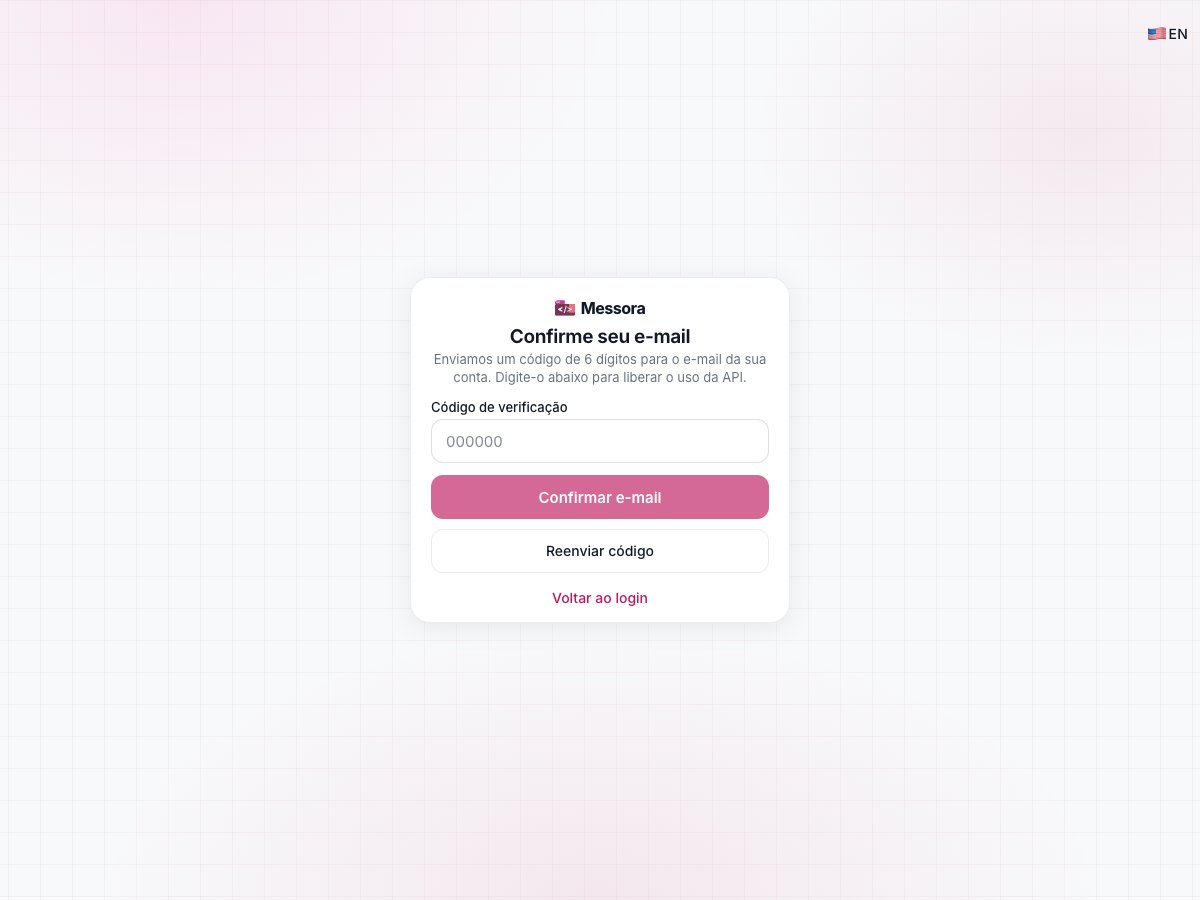
After signup, Messora creates the session and opens `/auth/verify-email`.
 ### How it works
1. Open the inbox for the email used during signup.
2. Find the message from Messora.
3. Copy the 6-digit code.
4. Enter it in **Verification code**.
5. Click **Confirm email**.
6. Wait for the success message and redirect to `/app`.
The code expires after 15 minutes. Each code allows up to five attempts; request a new code after that limit.
### Resend the code
If the email does not arrive:
1. Check spam, promotions, and inbox filters.
2. Click **Resend code**.
3. Wait for the 60-second countdown before requesting another code.
The first resend is not blocked by the cooldown. Later resends must respect the 60-second interval.
### Why is this step required?
While the email is unconfirmed, Messora blocks consumption operations, including:
* creating or rotating API keys;
* running the Playground;
* authenticated requests using `X-API-Key`.
Billing, account settings, and password changes may remain accessible, but they do not unlock API usage.
### Common states and errors
* **Incorrect code:** check all six digits and try again.
* **Code expired or invalid:** request a new code.
* **Too many incorrect attempts:** use **Resend code**.
* **Wait before resending:** the 60-second cooldown is still active.
* **Session expired:** return to sign in and authenticate again.
***
## 3. First dashboard visit
After confirmation, you arrive at the dashboard at `/app`.
### How it works
1. Open the inbox for the email used during signup.
2. Find the message from Messora.
3. Copy the 6-digit code.
4. Enter it in **Verification code**.
5. Click **Confirm email**.
6. Wait for the success message and redirect to `/app`.
The code expires after 15 minutes. Each code allows up to five attempts; request a new code after that limit.
### Resend the code
If the email does not arrive:
1. Check spam, promotions, and inbox filters.
2. Click **Resend code**.
3. Wait for the 60-second countdown before requesting another code.
The first resend is not blocked by the cooldown. Later resends must respect the 60-second interval.
### Why is this step required?
While the email is unconfirmed, Messora blocks consumption operations, including:
* creating or rotating API keys;
* running the Playground;
* authenticated requests using `X-API-Key`.
Billing, account settings, and password changes may remain accessible, but they do not unlock API usage.
### Common states and errors
* **Incorrect code:** check all six digits and try again.
* **Code expired or invalid:** request a new code.
* **Too many incorrect attempts:** use **Resend code**.
* **Wait before resending:** the 60-second cooldown is still active.
* **Session expired:** return to sign in and authenticate again.
***
## 3. First dashboard visit
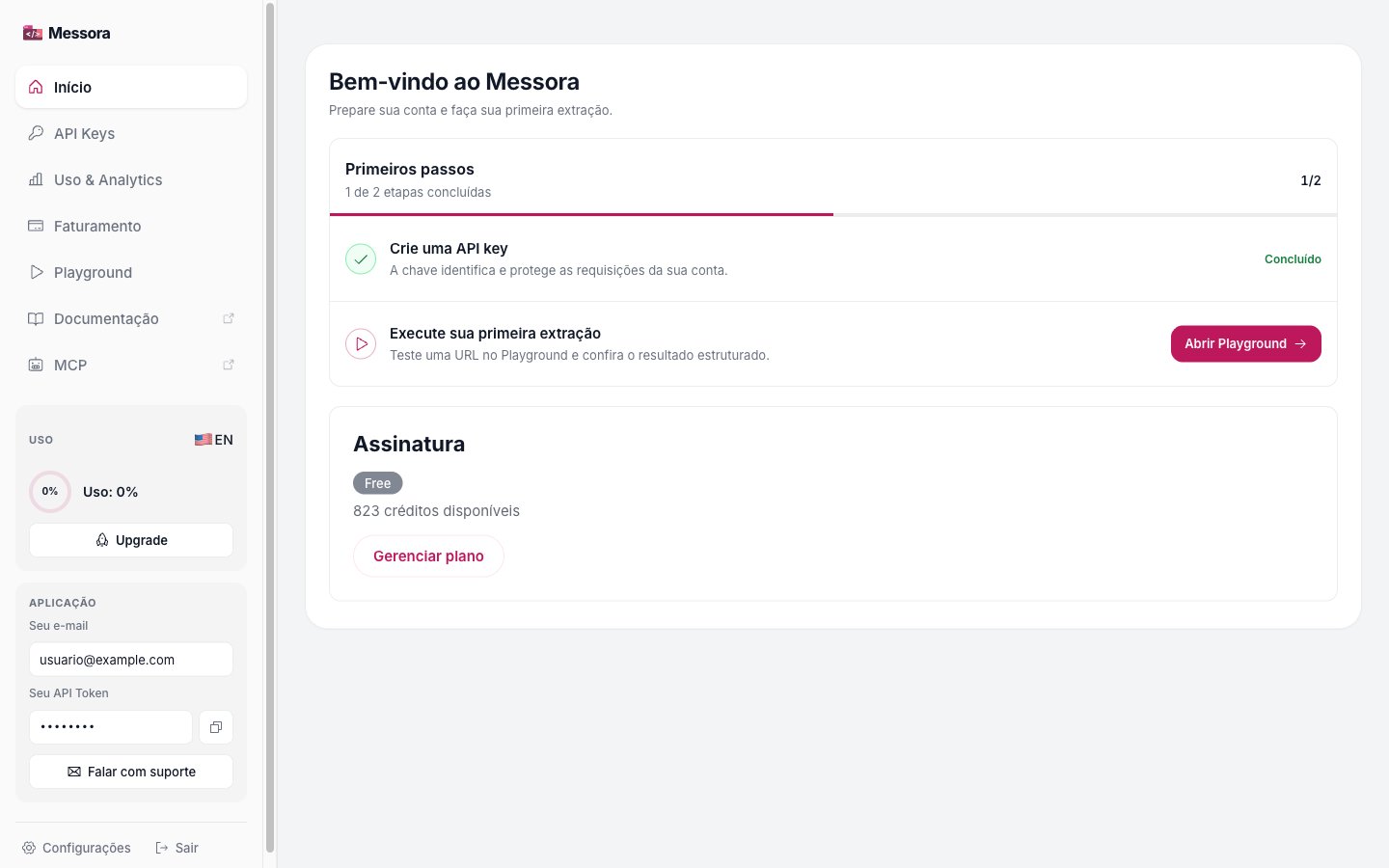
After confirmation, you arrive at the dashboard at `/app`.
 ### What to check
* **First steps:** shows the account onboarding progress;
* **API Keys:** opens key management;
* **Usage & Analytics:** shows consumption and history;
* **Billing:** shows the plan and credit options;
* **Playground:** opens the extraction tools;
* **Usage:** shows the consumed percentage;
* **Subscription:** shows the current plan and available credits.
If the account has not completed onboarding, use **Open Playground** in the **First steps** card or select **Playground** in the sidebar.
***
## 4. Create an API key
### How to access
From the dashboard, click **API Keys** or open [www.messora.dev/app/keys](https://www.messora.dev/app/keys).
### What to check
* **First steps:** shows the account onboarding progress;
* **API Keys:** opens key management;
* **Usage & Analytics:** shows consumption and history;
* **Billing:** shows the plan and credit options;
* **Playground:** opens the extraction tools;
* **Usage:** shows the consumed percentage;
* **Subscription:** shows the current plan and available credits.
If the account has not completed onboarding, use **Open Playground** in the **First steps** card or select **Playground** in the sidebar.
***
## 4. Create an API key
### How to access
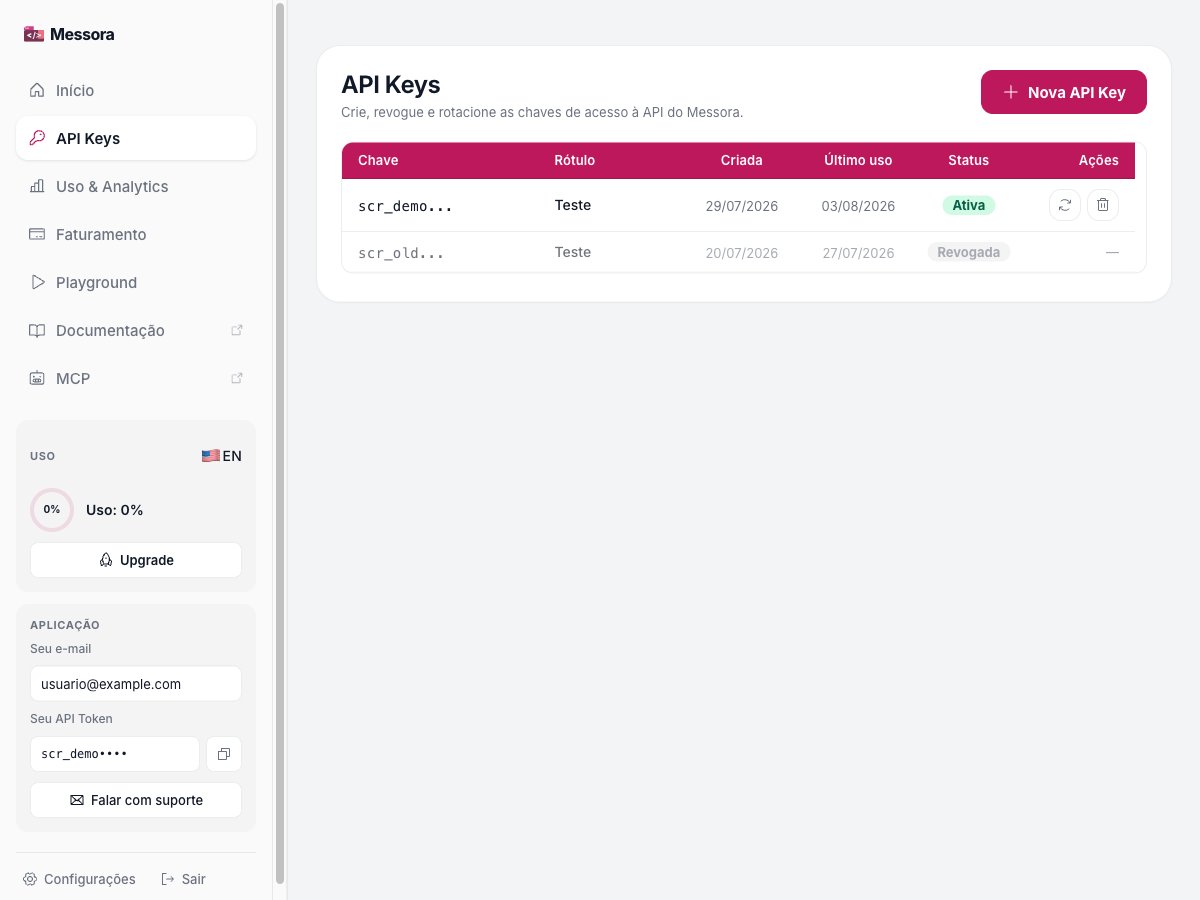
From the dashboard, click **API Keys** or open [www.messora.dev/app/keys](https://www.messora.dev/app/keys).
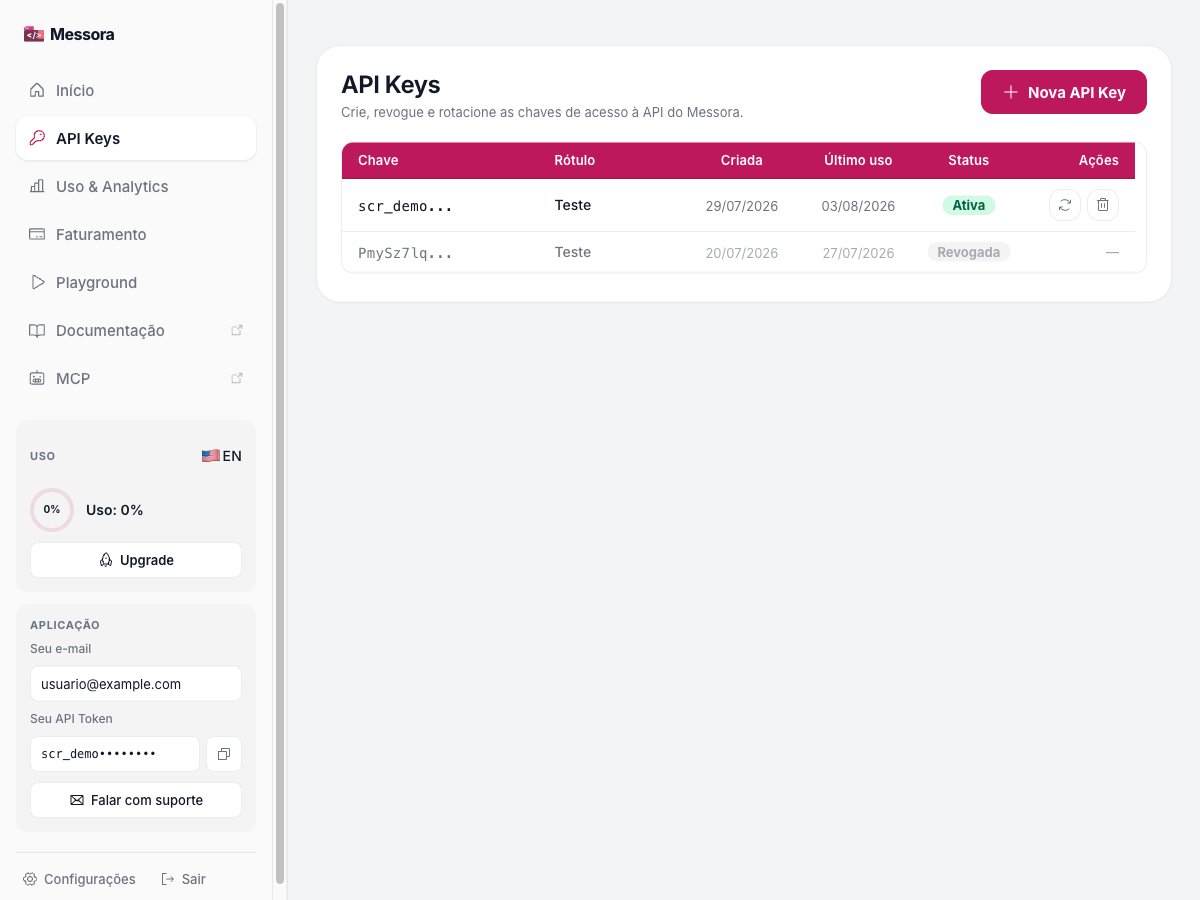 Click **New API Key**.
 ### Steps
1. Click **New API Key**.
2. Enter a label that identifies the use, such as `beta-playground` or `local-test`.
3. Click **Create key**.
4. Copy the key immediately.
5. Store it in a password manager or secret manager.
6. Close the modal only after confirming that the key is stored.
### Important: the key is shown once
The full API key appears only when it is created. After that, the interface shows only its prefix.
If you close the modal without copying the key, create another one. Do not try to recover the full value from the table.
### Table columns
| Column | Meaning |
| --------- | ---------------------------------------------------------------- |
| Key | Key prefix, never the full value. |
| Label | Name assigned when the key was created. |
| Created | Creation date. |
| Last used | Last recorded use, or an indication that it has never been used. |
| Status | **Active** or **Revoked**. |
| Actions | Rotate or revoke the key, depending on its state. |
An account can have up to 10 active API keys. To create another key after reaching the limit, revoke a key that is no longer needed.
### Best practices
* Create one key per environment or purpose.
* Use labels that explain the context.
* Never put the key in screenshots, tickets, commits, or messages.
* Never send the key to a browser or client-side application.
* Revoke keys that were exposed or are no longer needed.
* When rotating, update the consuming system before removing the old access.
***
## 5. Open the Playground
Open [www.messora.dev/app/playground](https://www.messora.dev/app/playground) from the sidebar.
The Playground opens on **Extract**, which is the recommended tool for the first run.
### Available tools
| Tool | Initial use |
| --------------- | -------------------------------------------------------- |
| Extract | Extract a page and choose Markdown, JSON, or Raw output. |
| Crawl Website | Crawl multiple pages starting from a URL. |
| Web Search | Query search results. |
| Search (legacy) | Compatibility with the previous search mode. |
| Scrape Markdown | Get content as Markdown. |
| Scrape HTML | Get raw HTML. |
For this onboarding, stay on **Extract**.
***
## 6. Run your first extraction
### Minimal configuration
1. In **URL to extract**, enter a public URL, for example `https://messora.dev`.
2. Wait for the estimate to appear.
3. Confirm that your balance covers the run.
4. Keep **Markdown** selected under **Output**.
5. Click **Extract Data**.
6. Wait for the result.
The default Extract mode reports **1 credit per page**. The estimate shown by the Playground is the source of truth for the current configuration, especially when structured output or advanced options are enabled.
### Parameters
Click **Parameters** to open the side drawer.
Available controls include:
* **API key:** attributes the run to a key in usage reports;
* **Extraction guidance:** adds instructions about how to interpret the page;
* **Fact check:** limits extraction to values explicitly supported by the page;
* **Follow subdomains:** follows links on subdomains during multi-page extract;
* **Include frames:** includes iframe references in Markdown without fetching external frame content;
* **Max pages:** sets the page limit, from 1 to 10 in the Playground;
* **Max depth:** limits extract depth;
* **Parse PDF:** processes discovered PDFs;
* **Cache maxAge:** sets the scrape cache TTL;
* **Tags:** adds labels that can be filtered in the dashboard;
* **Output:** Markdown, JSON, or Raw;
* **Render JavaScript:** renders pages that depend on JavaScript;
* **Main content only:** removes peripheral content when supported;
* **Timeout:** sets the execution timeout;
* **Wait after load:** waits additional milliseconds after loading.
For the first test, keep the defaults and change only the URL. This makes it easier to determine whether an issue comes from the domain or from an advanced configuration.
### Expected result
A successful run shows:
* Markdown, JSON, or Raw output;
* response time;
* **Copy** button;
* **Download result** button;
* credits used;
* **View usage** link;
* run diagnostics;
* HTTP status;
* engine used;
* requested and analyzed page counts;
* estimated and used credits;
* latency;
* retries;
* final URL.
### Steps
1. Click **New API Key**.
2. Enter a label that identifies the use, such as `beta-playground` or `local-test`.
3. Click **Create key**.
4. Copy the key immediately.
5. Store it in a password manager or secret manager.
6. Close the modal only after confirming that the key is stored.
### Important: the key is shown once
The full API key appears only when it is created. After that, the interface shows only its prefix.
If you close the modal without copying the key, create another one. Do not try to recover the full value from the table.
### Table columns
| Column | Meaning |
| --------- | ---------------------------------------------------------------- |
| Key | Key prefix, never the full value. |
| Label | Name assigned when the key was created. |
| Created | Creation date. |
| Last used | Last recorded use, or an indication that it has never been used. |
| Status | **Active** or **Revoked**. |
| Actions | Rotate or revoke the key, depending on its state. |
An account can have up to 10 active API keys. To create another key after reaching the limit, revoke a key that is no longer needed.
### Best practices
* Create one key per environment or purpose.
* Use labels that explain the context.
* Never put the key in screenshots, tickets, commits, or messages.
* Never send the key to a browser or client-side application.
* Revoke keys that were exposed or are no longer needed.
* When rotating, update the consuming system before removing the old access.
***
## 5. Open the Playground
Open [www.messora.dev/app/playground](https://www.messora.dev/app/playground) from the sidebar.
The Playground opens on **Extract**, which is the recommended tool for the first run.
### Available tools
| Tool | Initial use |
| --------------- | -------------------------------------------------------- |
| Extract | Extract a page and choose Markdown, JSON, or Raw output. |
| Crawl Website | Crawl multiple pages starting from a URL. |
| Web Search | Query search results. |
| Search (legacy) | Compatibility with the previous search mode. |
| Scrape Markdown | Get content as Markdown. |
| Scrape HTML | Get raw HTML. |
For this onboarding, stay on **Extract**.
***
## 6. Run your first extraction
### Minimal configuration
1. In **URL to extract**, enter a public URL, for example `https://messora.dev`.
2. Wait for the estimate to appear.
3. Confirm that your balance covers the run.
4. Keep **Markdown** selected under **Output**.
5. Click **Extract Data**.
6. Wait for the result.
The default Extract mode reports **1 credit per page**. The estimate shown by the Playground is the source of truth for the current configuration, especially when structured output or advanced options are enabled.
### Parameters
Click **Parameters** to open the side drawer.
Available controls include:
* **API key:** attributes the run to a key in usage reports;
* **Extraction guidance:** adds instructions about how to interpret the page;
* **Fact check:** limits extraction to values explicitly supported by the page;
* **Follow subdomains:** follows links on subdomains during multi-page extract;
* **Include frames:** includes iframe references in Markdown without fetching external frame content;
* **Max pages:** sets the page limit, from 1 to 10 in the Playground;
* **Max depth:** limits extract depth;
* **Parse PDF:** processes discovered PDFs;
* **Cache maxAge:** sets the scrape cache TTL;
* **Tags:** adds labels that can be filtered in the dashboard;
* **Output:** Markdown, JSON, or Raw;
* **Render JavaScript:** renders pages that depend on JavaScript;
* **Main content only:** removes peripheral content when supported;
* **Timeout:** sets the execution timeout;
* **Wait after load:** waits additional milliseconds after loading.
For the first test, keep the defaults and change only the URL. This makes it easier to determine whether an issue comes from the domain or from an advanced configuration.
### Expected result
A successful run shows:
* Markdown, JSON, or Raw output;
* response time;
* **Copy** button;
* **Download result** button;
* credits used;
* **View usage** link;
* run diagnostics;
* HTTP status;
* engine used;
* requested and analyzed page counts;
* estimated and used credits;
* latency;
* retries;
* final URL.
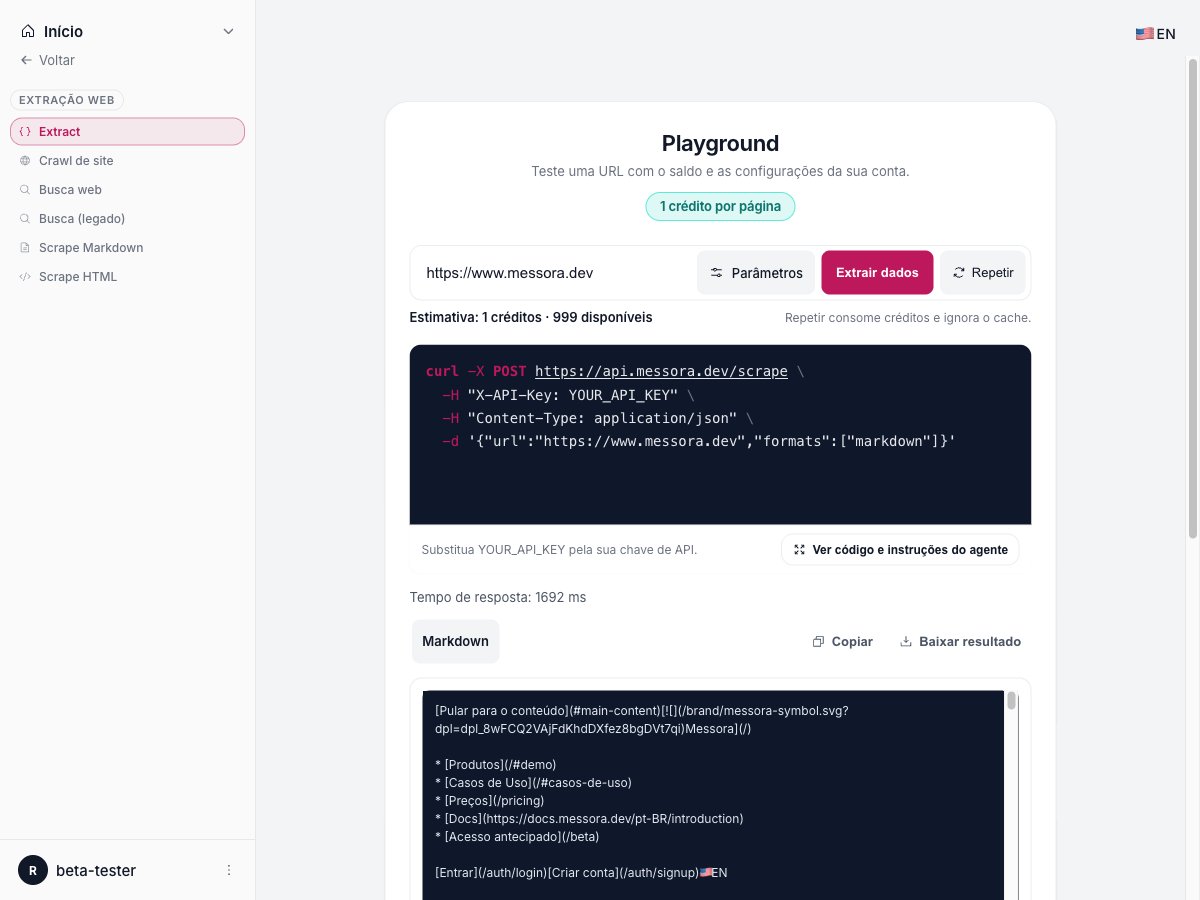 The expected diagnostic state is **Success**. The HTTP status is normally `200` for an available page.
### What to record during beta testing
After the first run, record:
* URL tested;
* tool used;
* selected output;
* response time;
* diagnostic status;
* HTTP status;
* credits used;
* final URL, if it differs from the input;
* error message, if any.
Do not include your API key in the report.
***
## Playground states
| State | Meaning | Next action |
| ------------------------------- | ----------------------------------------------------------------------------------------------------------------------------------------------- | ------------------------------------------------------------------------------- |
| Ready to run | The URL has not been executed yet. | Enter the URL and wait for the estimate. |
| Calculating estimate | The cost of the configuration is being validated. | Wait and avoid repeated clicks. |
| Session expired | Authentication is no longer valid. | Sign in again. |
| No active API key | The account has no usable key. | Create an API key under **API Keys**. |
| Insufficient credits | The balance does not cover the run. | Reduce the scope or buy credits. |
| URL unavailable in beta | The domain is on the beta denylist (today: `linkedin.com`, `instagram.com`) or otherwise refused. API `detail`: `domain_not_supported_in_beta`. | Test another public domain — no credits are charged. |
| Anti-bot protection detected | The target blocked or protected the attempt. | Test another URL; the interface states that this case does not consume credits. |
| Request timed out | The page exceeded the timeout. | Try another URL or adjust advanced options. |
| Extraction failed | The engine could not complete the extraction. | Review the URL and try again. |
| Account limit reached | A temporary rate limit was reached. | Wait and try again. |
| Service temporarily unavailable | The service did not respond correctly. | Wait a moment and repeat. |
| Success | The result was produced. | Review the content and record the beta metrics. |
Do not treat a failed extraction as a success. Record the displayed message and the target domain for beta triage.
## Beta best practices
* Start with a simple public page before testing complex sites.
* Run one extraction at a time and wait for the final diagnostic.
* Use Markdown for the first test; try JSON after the basic flow works.
* Enable `Render JavaScript` only when the page depends on browser-loaded content.
* Do not use private URLs, login-protected pages, or third-party personal data.
* Do not attempt to bypass CAPTCHA, WAFs, robots.txt, or target limits.
* Review results for personal data before sharing them.
* Check **Usage & Analytics** after a successful run.
* Report the domain, message, and approximate time; never send the API key.
## FAQ
### Do I need to create an API key before confirming my email?
No. Confirm your email first. Key creation and rotation are blocked until the account is verified.
### Does the Playground ask me to type the API key?
Not for an authenticated Playground run. The Playground can attribute usage to a key through the **Parameters** drawer. Code snippets use `YOUR_API_KEY` as a placeholder for external integrations.
### Where should I store the API key?
Use a password manager or secret manager. For an integration, use a server-side environment variable. Never put the key in versioned code or client-side code.
### What if I close the modal without copying the key?
Create a new API key. The full value is shown only at creation time.
### What if the email code does not arrive?
Check spam and filters, wait a few seconds, and use **Resend code**. Respect the 60-second cooldown between resends.
### How much does the first extraction cost?
The default Extract mode reports 1 credit per page. The final cost depends on the configuration; always confirm the estimate shown by the Playground before running it.
### Can I test any website?
No. During the beta, use only permitted public URLs and respect target restrictions. `linkedin.com` and `instagram.com` (including subdomains) are refused before fetch with `403` / `domain_not_supported_in_beta` and do not consume credits. The denylist can grow — see [Authentication](/en/authentication#domains-refused-in-beta).
### How do I ask for help?
Email `customer@messora.dev` with the route, target domain, approximate time, tool, HTTP status, and displayed message. Remove passwords, codes, API keys, and personal data from the report.
## Onboarding completion criteria
Onboarding is complete when the beta tester can:
* sign in to `/app`;
* confirm that the email is verified;
* see an active API key without exposing its full value;
* open `/app/playground`;
* get an estimate before running;
* execute a public URL;
* see a result with **Success** status;
* identify credits used and run diagnostics.
## Related
* [Introduction](/en/introduction)
* [Quickstart](/en/quickstart)
* [Authentication](/en/authentication)
* [API reference: Scrape](/en/api-reference/scrape)
* [Playground guide: Scrape](/en/playground/scrape)
* [Usage & Analytics](https://www.messora.dev/app/usage)
* [Billing](https://www.messora.dev/app/billing)
* [API Keys](https://www.messora.dev/app/keys)
* [Playground](https://www.messora.dev/app/playground)
The expected diagnostic state is **Success**. The HTTP status is normally `200` for an available page.
### What to record during beta testing
After the first run, record:
* URL tested;
* tool used;
* selected output;
* response time;
* diagnostic status;
* HTTP status;
* credits used;
* final URL, if it differs from the input;
* error message, if any.
Do not include your API key in the report.
***
## Playground states
| State | Meaning | Next action |
| ------------------------------- | ----------------------------------------------------------------------------------------------------------------------------------------------- | ------------------------------------------------------------------------------- |
| Ready to run | The URL has not been executed yet. | Enter the URL and wait for the estimate. |
| Calculating estimate | The cost of the configuration is being validated. | Wait and avoid repeated clicks. |
| Session expired | Authentication is no longer valid. | Sign in again. |
| No active API key | The account has no usable key. | Create an API key under **API Keys**. |
| Insufficient credits | The balance does not cover the run. | Reduce the scope or buy credits. |
| URL unavailable in beta | The domain is on the beta denylist (today: `linkedin.com`, `instagram.com`) or otherwise refused. API `detail`: `domain_not_supported_in_beta`. | Test another public domain — no credits are charged. |
| Anti-bot protection detected | The target blocked or protected the attempt. | Test another URL; the interface states that this case does not consume credits. |
| Request timed out | The page exceeded the timeout. | Try another URL or adjust advanced options. |
| Extraction failed | The engine could not complete the extraction. | Review the URL and try again. |
| Account limit reached | A temporary rate limit was reached. | Wait and try again. |
| Service temporarily unavailable | The service did not respond correctly. | Wait a moment and repeat. |
| Success | The result was produced. | Review the content and record the beta metrics. |
Do not treat a failed extraction as a success. Record the displayed message and the target domain for beta triage.
## Beta best practices
* Start with a simple public page before testing complex sites.
* Run one extraction at a time and wait for the final diagnostic.
* Use Markdown for the first test; try JSON after the basic flow works.
* Enable `Render JavaScript` only when the page depends on browser-loaded content.
* Do not use private URLs, login-protected pages, or third-party personal data.
* Do not attempt to bypass CAPTCHA, WAFs, robots.txt, or target limits.
* Review results for personal data before sharing them.
* Check **Usage & Analytics** after a successful run.
* Report the domain, message, and approximate time; never send the API key.
## FAQ
### Do I need to create an API key before confirming my email?
No. Confirm your email first. Key creation and rotation are blocked until the account is verified.
### Does the Playground ask me to type the API key?
Not for an authenticated Playground run. The Playground can attribute usage to a key through the **Parameters** drawer. Code snippets use `YOUR_API_KEY` as a placeholder for external integrations.
### Where should I store the API key?
Use a password manager or secret manager. For an integration, use a server-side environment variable. Never put the key in versioned code or client-side code.
### What if I close the modal without copying the key?
Create a new API key. The full value is shown only at creation time.
### What if the email code does not arrive?
Check spam and filters, wait a few seconds, and use **Resend code**. Respect the 60-second cooldown between resends.
### How much does the first extraction cost?
The default Extract mode reports 1 credit per page. The final cost depends on the configuration; always confirm the estimate shown by the Playground before running it.
### Can I test any website?
No. During the beta, use only permitted public URLs and respect target restrictions. `linkedin.com` and `instagram.com` (including subdomains) are refused before fetch with `403` / `domain_not_supported_in_beta` and do not consume credits. The denylist can grow — see [Authentication](/en/authentication#domains-refused-in-beta).
### How do I ask for help?
Email `customer@messora.dev` with the route, target domain, approximate time, tool, HTTP status, and displayed message. Remove passwords, codes, API keys, and personal data from the report.
## Onboarding completion criteria
Onboarding is complete when the beta tester can:
* sign in to `/app`;
* confirm that the email is verified;
* see an active API key without exposing its full value;
* open `/app/playground`;
* get an estimate before running;
* execute a public URL;
* see a result with **Success** status;
* identify credits used and run diagnostics.
## Related
* [Introduction](/en/introduction)
* [Quickstart](/en/quickstart)
* [Authentication](/en/authentication)
* [API reference: Scrape](/en/api-reference/scrape)
* [Playground guide: Scrape](/en/playground/scrape)
* [Usage & Analytics](https://www.messora.dev/app/usage)
* [Billing](https://www.messora.dev/app/billing)
* [API Keys](https://www.messora.dev/app/keys)
* [Playground](https://www.messora.dev/app/playground)